If you do not import bank statements automatically, you can manually record payments against your invoices. The method available to you depends on your current plan.
For "Sole Trader Free" Plan Users
There are two ways to do this on the Sole Trader Free Plan.
Method 1: The "Allocate Payment" Workflow
Step 1: Create the Payment
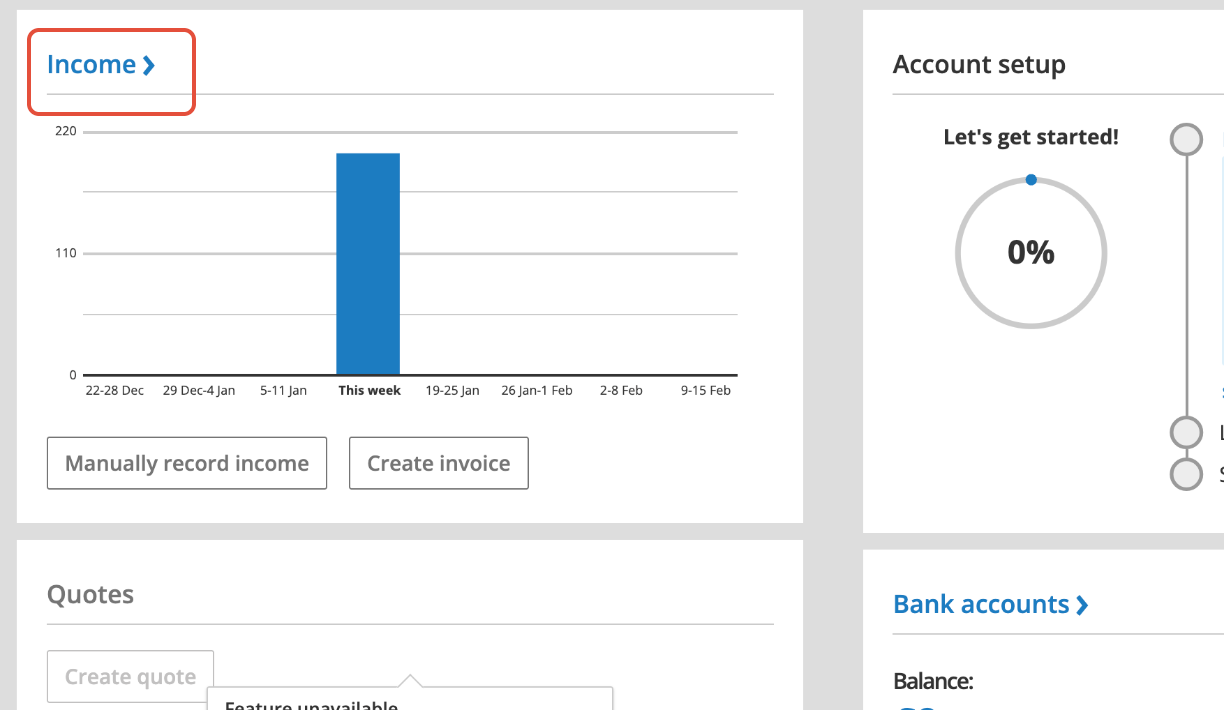
- Go to the Dashboard and click on Income.
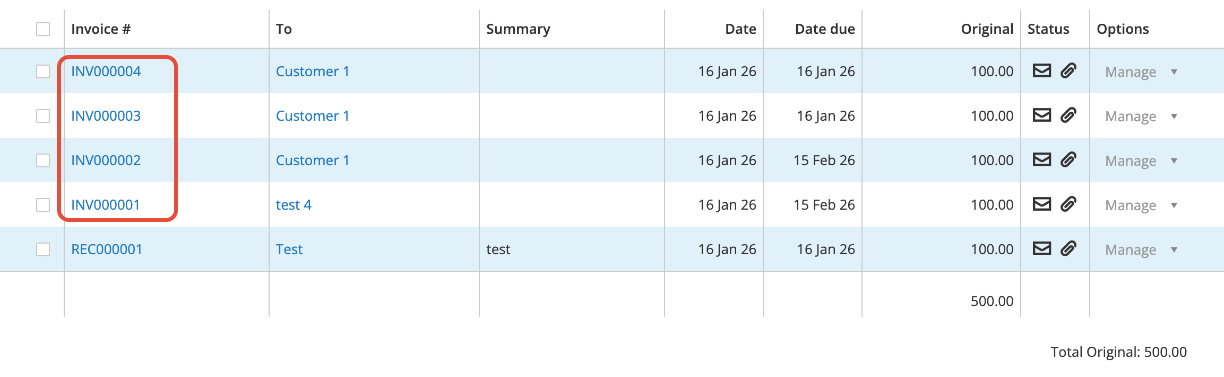
- Click on the Invoice Number of the invoice you wish to pay.
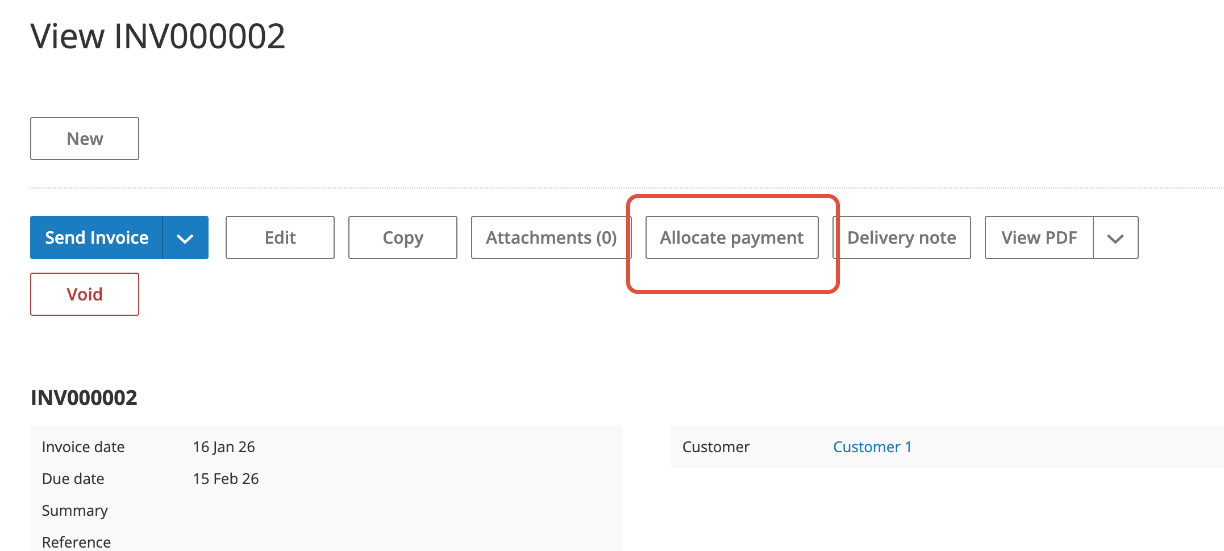
- Click the "Allocate payment" button.
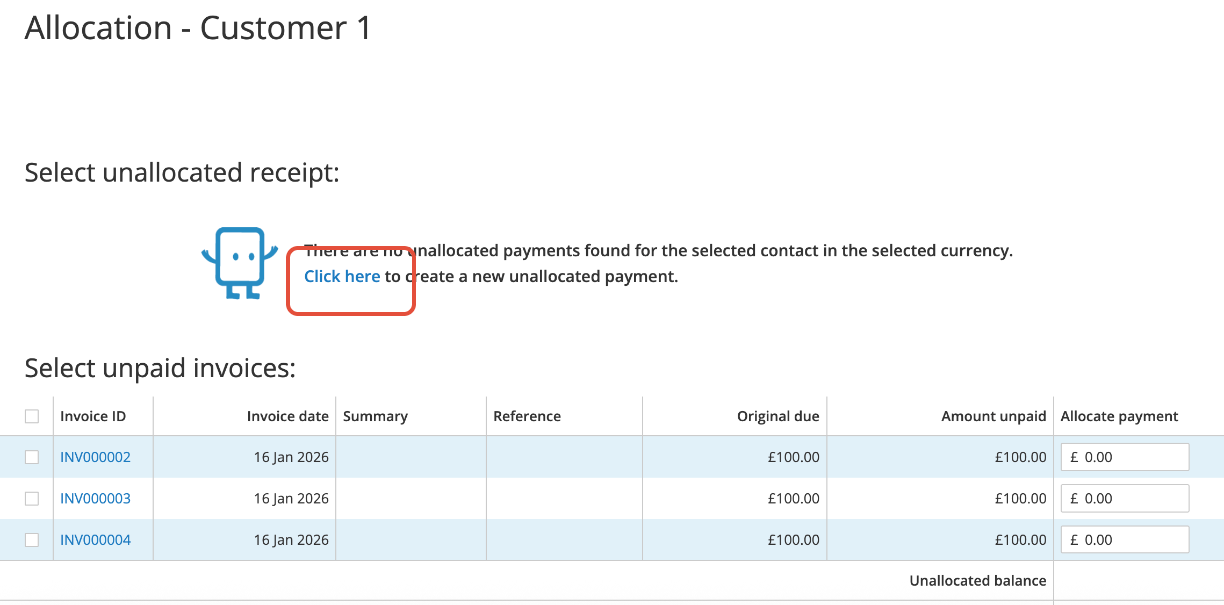
- Select the link to "Create a new payment". Note: If you already see a list of payments here, you can skip to Step 2 or click "Add payment" to create a new one.
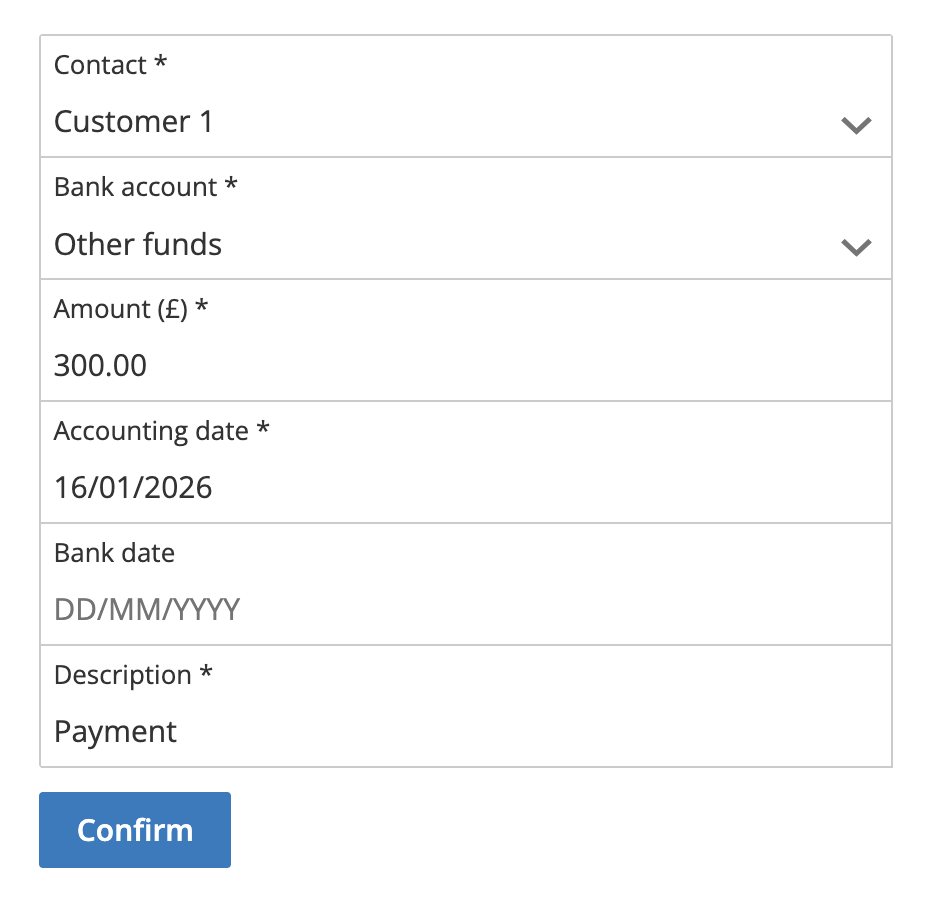
- Fill in the details of the payment
- Contact: Select the same contact as the invoice you want to pay.
- Bank Account: Select the “Other funds”.
- Amount: The total paid
- Accounting Date: The date the payment was received.
- Bank date: Leave this blank. The bank date will default to the "Accounting date".
- Description: A brief note.
Step 2: Allocate the Payment
- Once the payment is created (or if you are selecting an existing unallocated payment), you will see a list of unpaid invoices.
- Checkbox Method: Check the box next to the invoice(s) you want to pay. The system will automatically apply the payment amount to the selected invoices in order until the funds are used up.
- Manual Method: Alternatively, type the specific amount you wish to pay into the "Allocate payment" box next to each invoice.
- Click the Allocate button to finish.
You do not have to use the full payment amount. Any leftover funds will remain as "Unallocated Cash" for future use.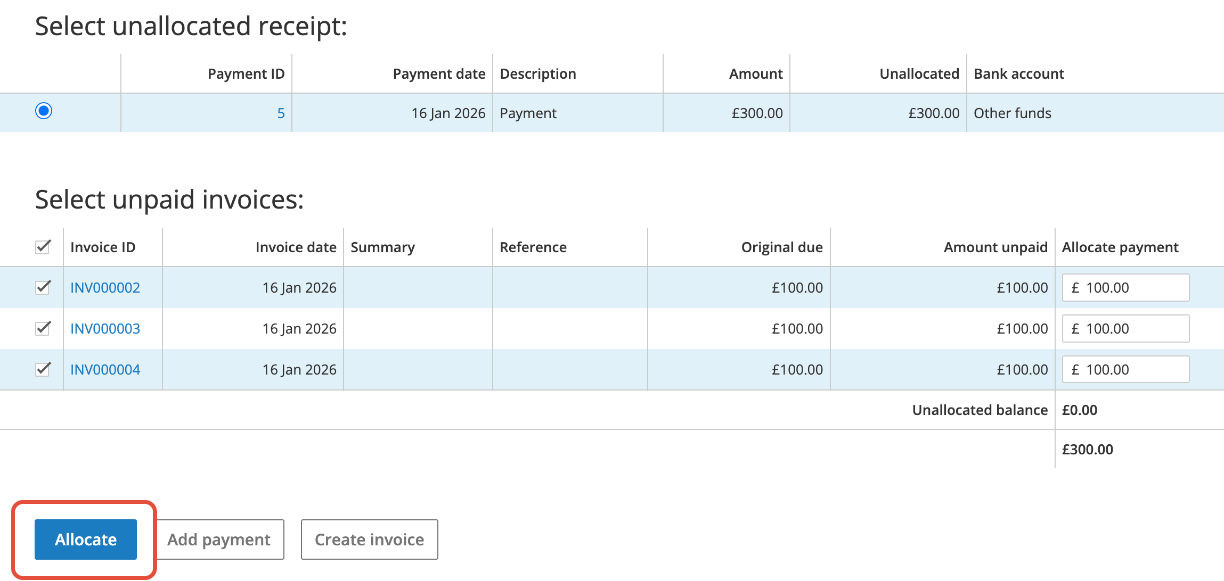
Method 2: The "Money In" (Bank Explain) Workflow
Prerequisite: You must have a bank account set up in the system. (To create one: Go to Dashboard > Bank accounts > Add bank account > Enter details > Save).
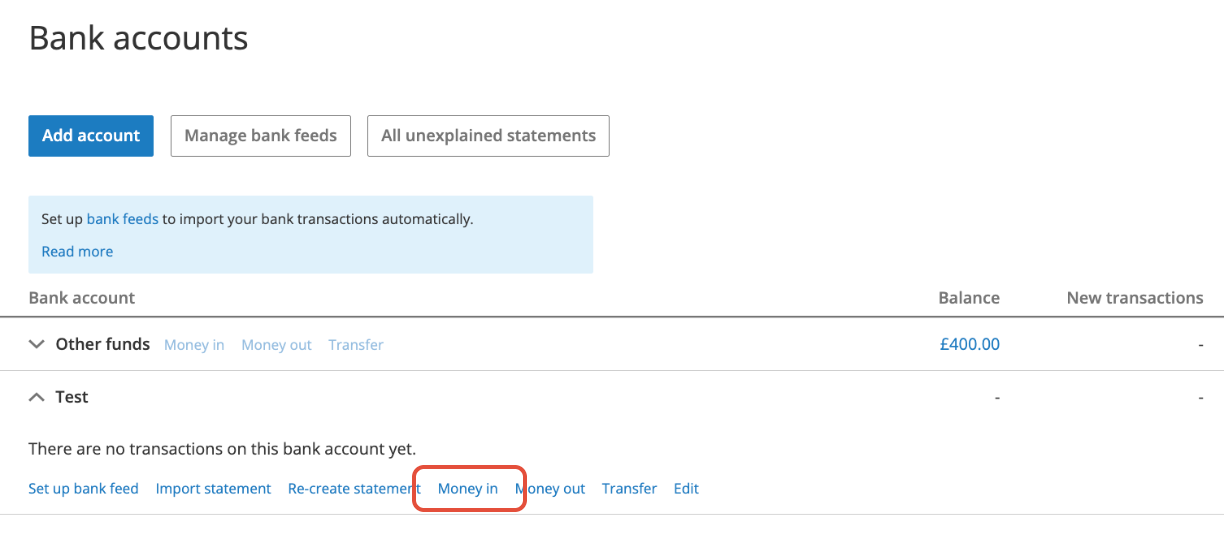
- Go to the Dashboard and click on Bank accounts.
- Find your bank account and click the Money in link. (You may need to click the down arrow to expand the options).
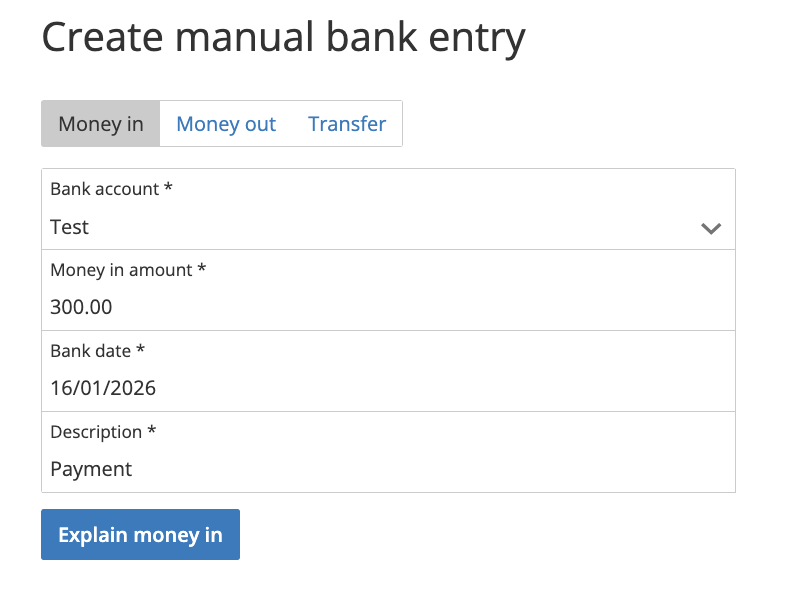
- Enter the Amount, Date, and Description of the receipt, then click "Explain Money in".
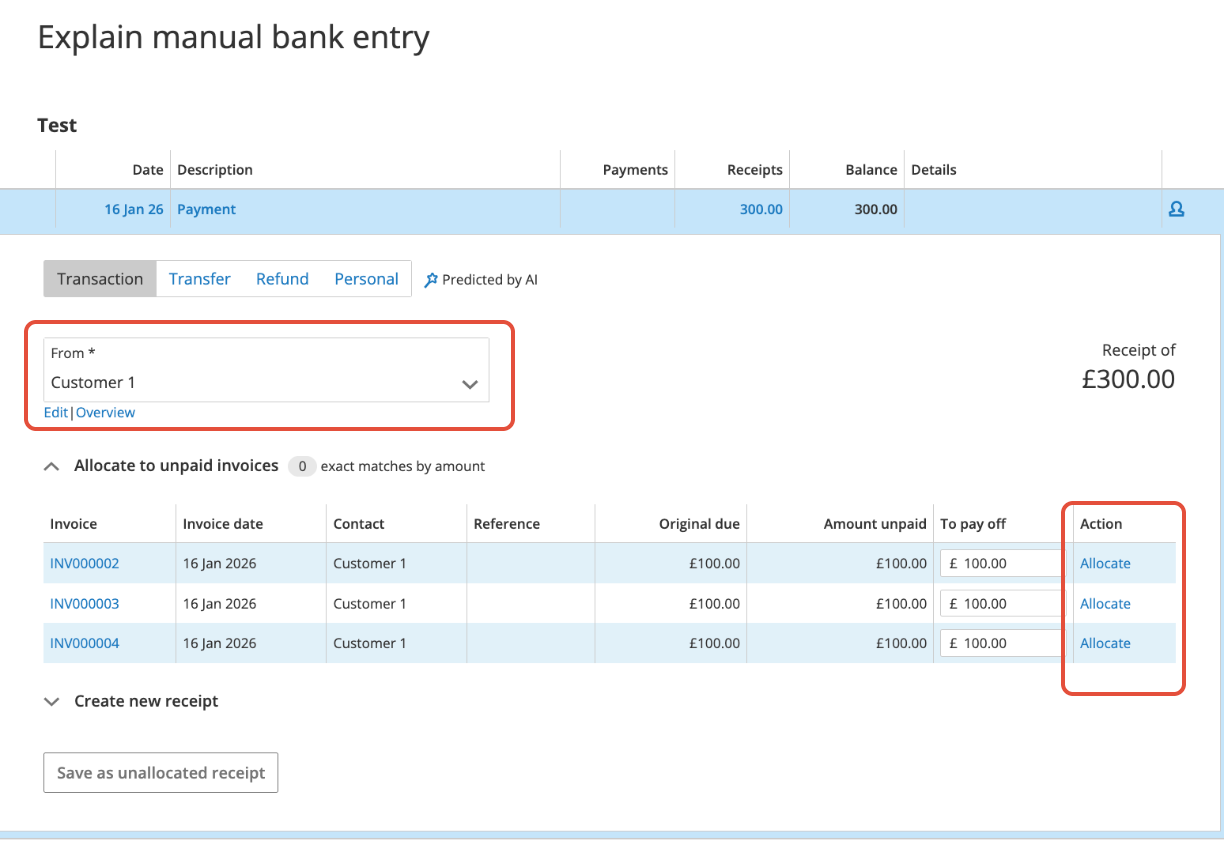
- You will be taken to the Bank Explain screen.
- Look at the "Allocate to unpaid invoices" table. Tip: Use the "From" dropdown to filter by contact if you don't see the invoice immediately.
- Click Allocate next to the relevant invoice(s). You can split the payment across multiple invoices if needed.
For "Sole Trader" & "Sole Trader + VAT" Plan Users
Paid plans have a streamlined feature that allows you to record payments directly on the invoice view.
Record Payment Directly
- Go to the Dashboard and click on Income.
- Click on the Invoice Number of the invoice you want to pay.
- Scroll to the Record Payment form on the invoice view screen.
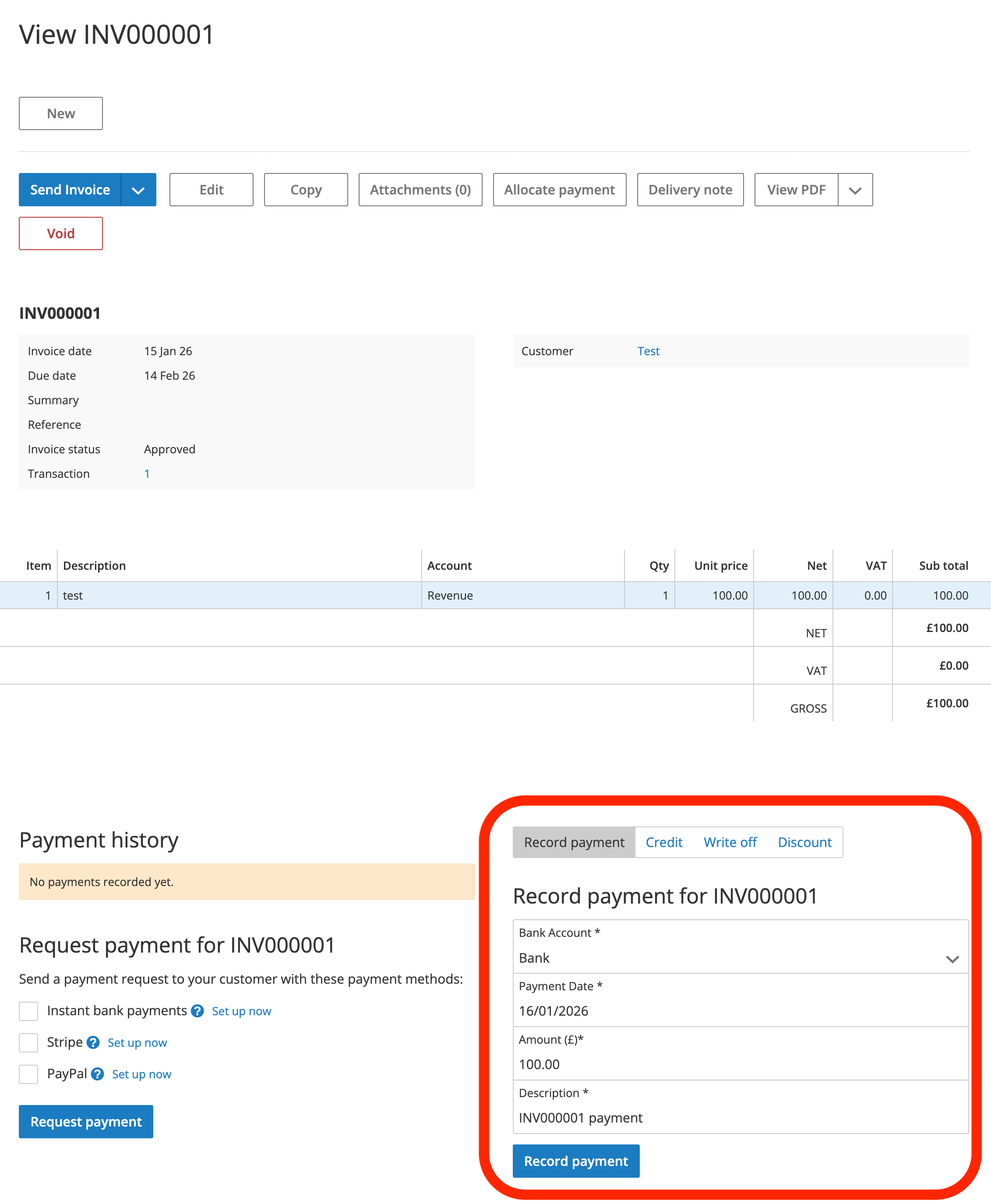
- Fill in the details:
- Bank Account: Select the account the money went into.
- Payment Date: The date the payment was received.
- Amount: The total paid.
- Description: A brief note.
- Click the Record payment button to complete.
Was this article helpful?
That’s Great!
Thank you for your feedback
Sorry! We couldn't be helpful
Thank you for your feedback
Feedback sent
We appreciate your effort and will try to fix the article