1. Set up a PayPal bank account
You will need to add a PayPal bank account in Clear Books to be able to use the import statements feature or to show the PayPal pay not button on customer statements.
Step 1.
On the Dashboard and click on Add account link under the Bank accounts widget.
Step 2.
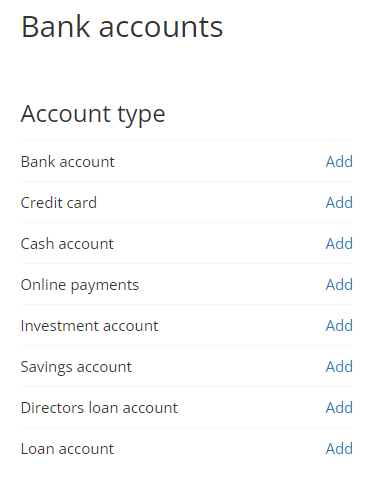
Click Add next to Online payments to create a Paypal account in Clear Books.
Step 3.
Select the payment provider as Paypal and hit the “Save” button.
2. Automatically import PayPal transactions
This tool automatically imports transactions and can create entities automatically from your Paypal merchant account. This feature supports PayPal business accounts only. A PayPal account must be set up on your Clear Books business first before these steps can be completed.
Step 1.
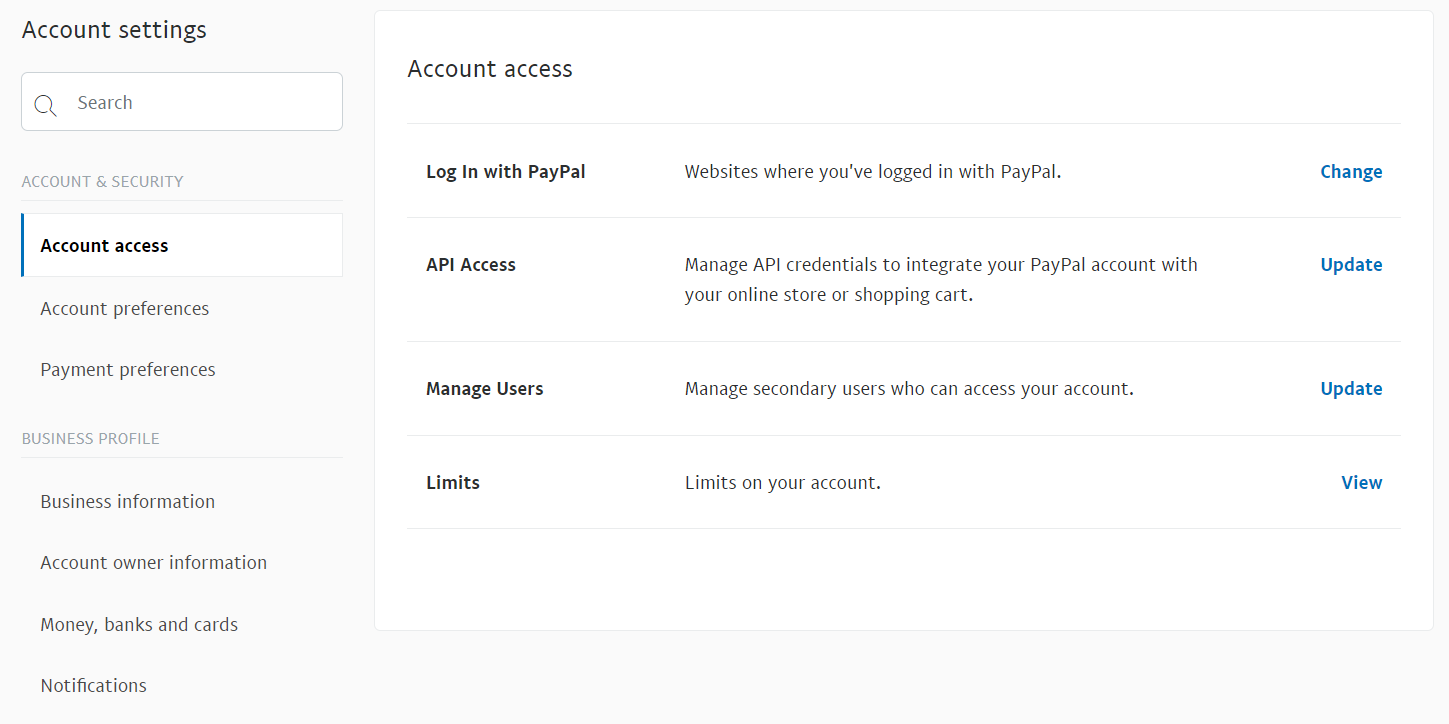
Login to your PayPal business account and navigate to the Account Settings page by clicking on the cog icon to the top right.

Step 2.
Click on the Account Access tab.
Step 3.
Next to API Access click on update.

Step 4.
Click on the Grant API permissions link under the Pre-built payment solution.

Step 5.
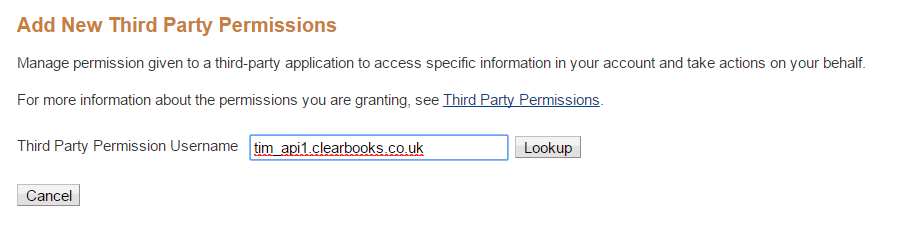
Add tim_api1.clearbooks.co.uk as the third party permission user name.
Step 6.
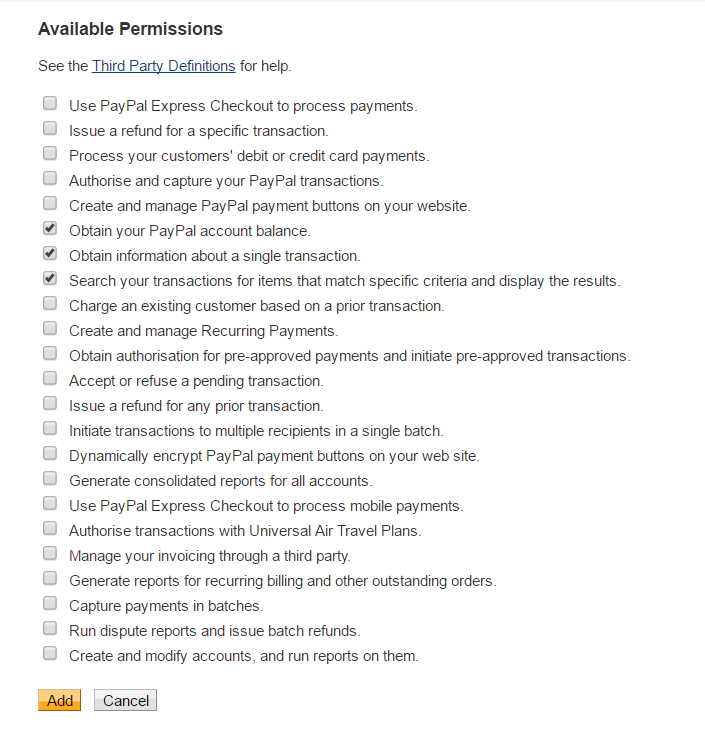
Set these third party permissions -
Obtain your PayPal account balance.
Obtain information about a single transaction.
Search your transactions for items that match specific criteria and display the results.
Step 7.
On the Clear Books Dashboard click on the Bank accounts widget title. Click on the down arrow next to the PayPal account and hit the "Edit" link.
Step 8.
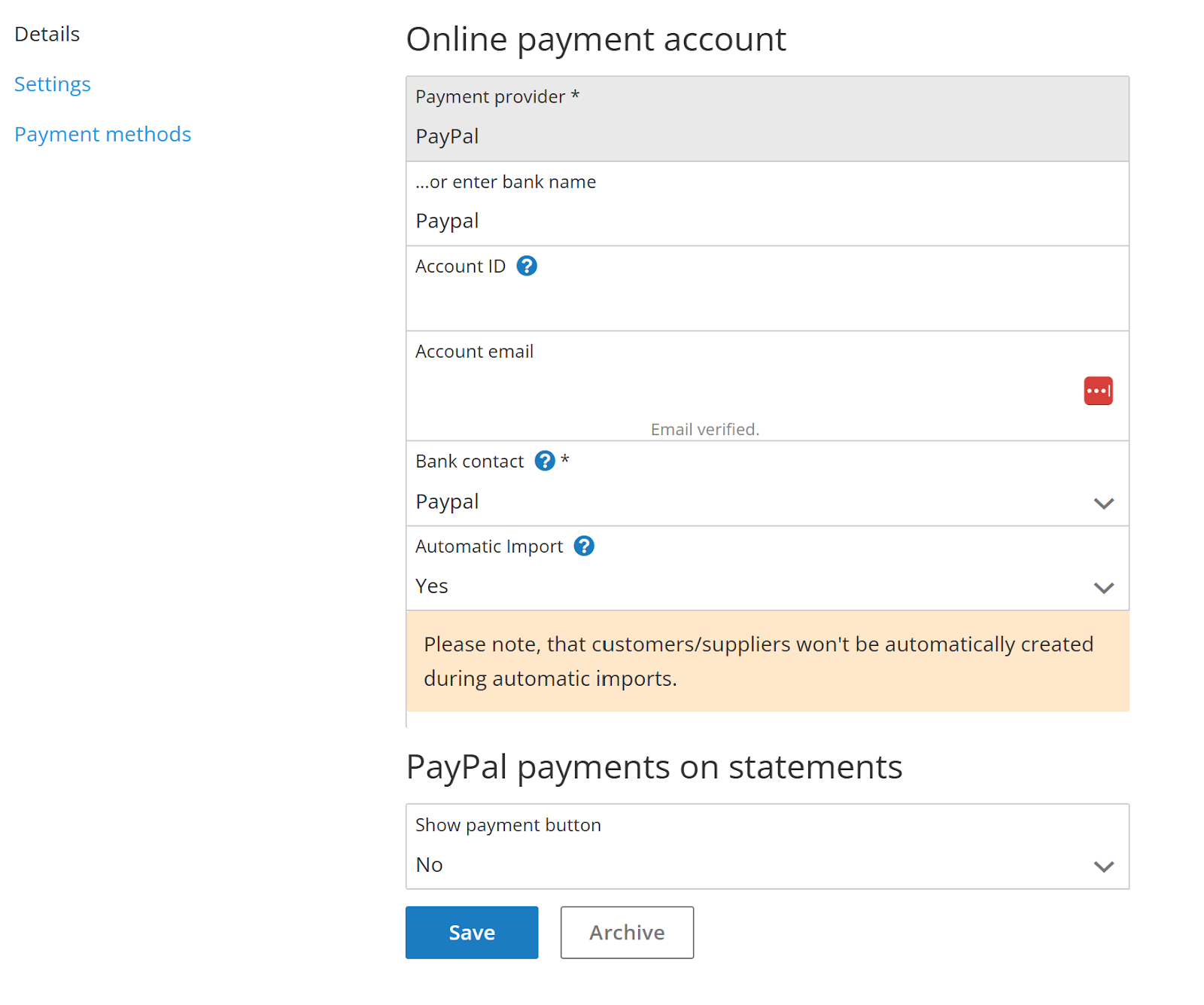
Enable the "Automatic Import" setting if you would like statements to be automatically imported,
Please note: To trigger automatic imports, there must be at least a single statement transaction imported / or at least 1 transaction manually.
IMPORTANT the email account must be set to the email address of the PayPal account you intend to import from. Once this has been done hit the Save button. You will then be sent a verification request email which you must verify before you begin importing.
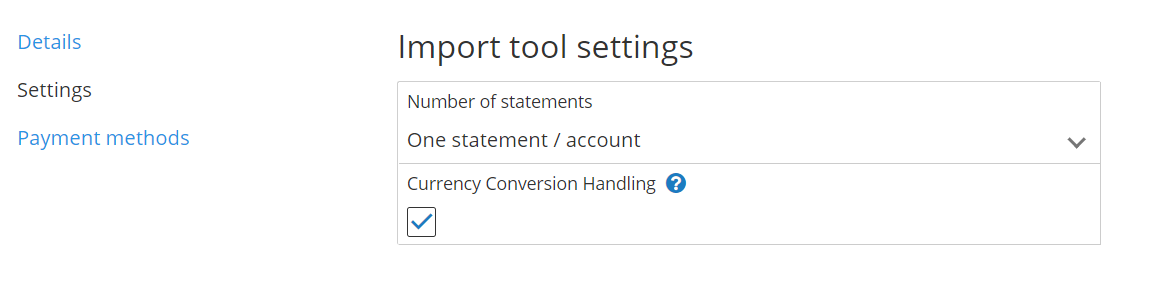
If you would like Clear Books to convert all multi currency transactions into the currency of the Paypal account, click on the Settings tab and tick the Currency Conversion Handling check box.
Please note: Due to a limitation of the PayPal API, this tool cannot match the original description for transactions involving currency conversion within your PayPal account. For example, if you have a GBP PayPal account and make a payment in USD, the PayPal transaction description will appear as "Conversion from USD to GBP" instead of the original description, such as "Purchase of xyz."
Step 9.
On the Clear Books Dashboard click on the Bank accounts widget title. Click on the down arrow next to the PayPal account and hit the Direct import link for your PayPal account.
Step 10.
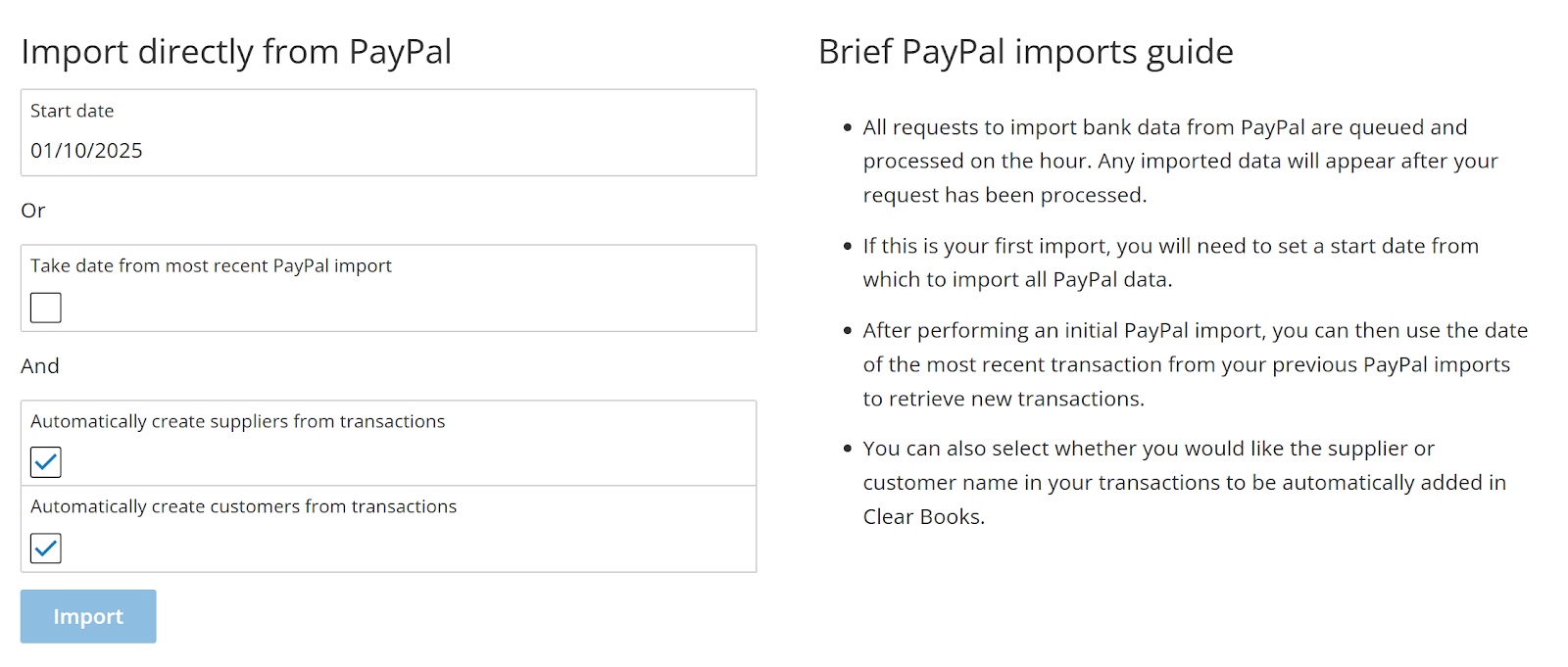
If this is the initial import then a start date for the import must be set. Choose whether to create suppliers/customers automatically for each transaction. When ready, click the Import button.
All statements should be imported on the next hour and will appear as imported statements on the Dashboard
Any PayPal transaction fees will link to the appropriate transaction and be automatically explained with the account code bank charges.
Was this article helpful?
That’s Great!
Thank you for your feedback
Sorry! We couldn't be helpful
Thank you for your feedback
Feedback sent
We appreciate your effort and will try to fix the article